Page Cross References
To link between documentation pages, you’ll use the the AsciiDoc cross reference macro and a page ID. This syntax in also used to add pages to navigation:create-a-navigation-file.adoc.
1. Reference by page ID
In Antora, a cross reference, also called an xref, needs a page ID in order to link to another documentation page. The number of page ID coordinates you need to enter into the xref depends on the location of the current file and the location of the destination file (the document you’re linking to). The closer the two files are, the shorter the page ID.
In the next section, will go over each part of the xref and page ID syntax.
| The page ID is integral to Antora’s ability to publish a site to multiple environments and domains without you needing to modify your source content. If you want to learn more about the page ID, see ROOT:page-id.adoc#important |
2. Xref and page ID anatomy
Let’s dissect a cross reference with a fully-qualified page ID.
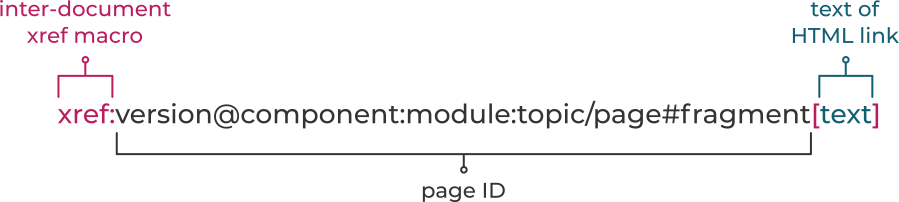
Here’s what each part of the cross reference and page ID does:
- xref:
-
The prefix of the AsciiDoc source file to source file cross reference macro.
- version@
-
The first page ID coordinate is used to specify the version name of the destination component. This value is defined in the ROOT:component-descriptor.adoc#version-key (antora.yml) in the branch of the component repository that hosts the destination file. When the version coordinate is filled, it must be directly followed by an at sign (
@).
- component-name:
-
The second coordinate specifies the name of the destination component. The component name is directly followed by one colon (
:). This value is defined in the ROOT:component-descriptor.adoc#name-key of the component descriptor in the branch of the component repository that hosts the destination file. If a component name is present, a module name must be specified after the:. Otherwise, this coordinate gets interpreted as the module name. - module-name:
-
The third coordinate specifies the name of the destination module. The module name is directly followed by one colon (
:). If a component name is present, and the name of the module is ROOT, the module name position can be left empty in some cases. That’s why you see a component name followed by two colons (::) sometimes. - page.adoc
-
The fourth coordinate specifies the local path of the destination file relative to the module’s documents directory. This value may include one or more optional topic folders. The destination file name must have the .adoc file extension.
- #fragment
-
An optional ID of a section or anchor point to link to in the destination page (i.e., deep link). This part is always optional.
- [link text]
-
The text of the link that is displayed to the reader. This text must be entered inside a set of square brackets (
[]) at the end of the macro. If the text is not specified, the raw target is used.
3. Scenario: In the same component and module
When the current page and the destination page are in the same module, you only need to enter the name of the destination file.
xref:error-handling.adoc[Error Handling]xref:concept/index.adoc[Key Concepts]xref:3.3@error-handling.adoc#message-list[error messages]4. Scenario: In the same component but a different module
When the current page and the destination page are in the same component but different modules, you’ll enter the name of the destination module and destination file.
xref:get-started:implement-api.adoc[implement an API]xref:ROOT:transports/c04-reference.adoc[C04 Transports]The xref:3.4@ROOT:scopes/super-mass.adoc[super massive scope] splits atoms.5. Scenario: In a different component
When the current page and the destination page are in different components, you’ll enter values for all of the coordinates.
If a version is not specified, the implicit value is master@.
How do I xref:2.0@default-ui::modify-template.adoc[modify a UI template]?xref:icons::index.adoc#intro[Introducing the Icon Project]xref:icons:web:modify-svg.adoc[Get started with the SVG assets]